Choosing the PDF Compression Layout for Downloaded Forms
Overview
Every completed Patient Form can be downloaded as a PDF, and Adit gives you a choice of three PDF layouts — Compressed, Table, and Large Print — so the downloaded document fits your purpose, whether that is minimizing storage size, producing a clean record for documentation, or maximizing readability for review.
This article explains what each layout looks like, when to use it, and how to switch between layouts before downloading.
Who Is This Article For?
Anyone who downloads completed forms from the Patient Forms module — front office, records, billing, or clinical staff reviewing patient responses.
Important: Changing the PDF layout affects only the downloaded PDF. It has no impact on the online form your patients see — the patient experience remains exactly the same regardless of which layout you choose.
How to Change the PDF Layout
Step 1: Access Form Manager
- Navigate to the Patient Forms module in Adit.
- In the left navigation menu, click on Form Manager.
- Select the desired form.
Step 2: Choose a Layout
- Click on the Download dropdown.
- Select your preferred PDF layout from the available options. The form will download in the selected format.
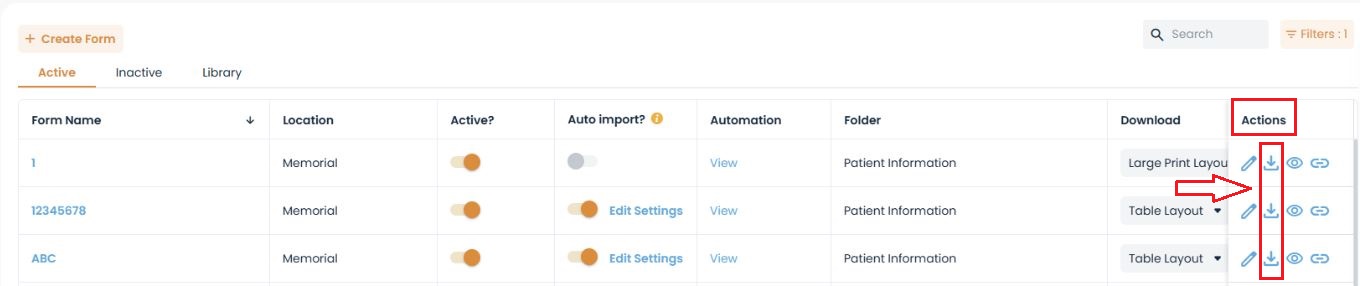
Step 3: Downloading a Form after layout selection
- Return to Forms Manager by clicking on the Back button on the top left of the page.
- Click on the Download
 button under the Actions Column in line with the desired form.
Available PDF Layouts — Comparison
Available PDF Layouts — Comparison
| Layout | Characteristics | Best Suited For |
|---|---|---|
| Compressed Layout | Minimizes file size and removes unnecessary whitespace, producing the most compact version of the document. | Storage efficiency — ideal when forms are archived in volume or when your EHR has document size considerations. |
| Table Layout | Places each field and its response within its own table cell, giving the document a structured, grid-organized appearance. | Documentation and record review — easy to scan field by field, useful for audits and chart documentation. |
| Large Print Layout | Closely matches the online form design, with larger spacing and improved readability. | Reviewing detailed responses — best when providers or staff need to read through answers comfortably, or when printing for review. |
Key Points to Remember
- Layout changes affect downloaded PDFs only — patient-facing forms remain unchanged.
- There is no permanent commitment: layouts can be switched at any time before downloading, so you can download the same form in different layouts for different purposes.
- Choose the layout per download based on the destination — compact for storage, table for records, large print for reading.
Frequently Asked Questions
Q: Will changing the layout alter how the form appears to patients?
No. The layout setting controls only the downloaded PDF. Patients always see the standard online form.
Q: Can I re-download a form in a different layout later?
Yes. Simply return to the Download dropdown and select another layout — you can switch as often as needed.
Q: Which layout should we use for forms imported into the EHR?
That depends on your practice's preference: Compressed keeps chart attachments small, while Table or Large Print make the stored document easier to read during chart review.
Related Articles
- Selecting the EHR Folder for Completed Form Uploads
- Toggling Auto-Import ON or OFF
Related Articles
Condense or Expand Patient Form Layout
Adit’s Patient Forms offer three PDF layouts for your forms: Compressed, Table Layout, and Large Print Layout. Changing the PDF layout does not change how the form appears on the screen when a patient is filling it out, this only modifies how the PDF ...Customize Patient Form PDF Settings
When downloading forms, you can set the form template to be automatically saved with a specific name format and PDF layout. You can also set the folder destination when the form is imported into your patient management system. To customize these ...How to Categorize Forms
Categorizing forms is a great way to organize your forms by creating your own customized categories. Creating Categories You can create custom categories through the forms preferences found in the Patient Forms module. From here, click on the edit ...How To: Archive patient forms
If a form has been assigned to a patient but no longer needs to be submitted, you should archive the form request. This removes the form from the patient's form list and reduces confusion. Common reasons why a form may no longer be required include ...How to Manually Import Forms into a Patient Profile
How to Manually Import Forms into a Patient Profile In some cases, a form may be submitted without being tied to a specific patient profile. When this happens, the practice will need to manually import the form to the correct patient’s file. This ...