How to Post Payments from Adit Pay into the Ledger
Adit enables you to log all payment activity with your patients into their ledger within the Practice Management Software. By default, all payments will be attributed to the primary provider that is associated with the patient on file.
How to Enable Logs into the EHR:
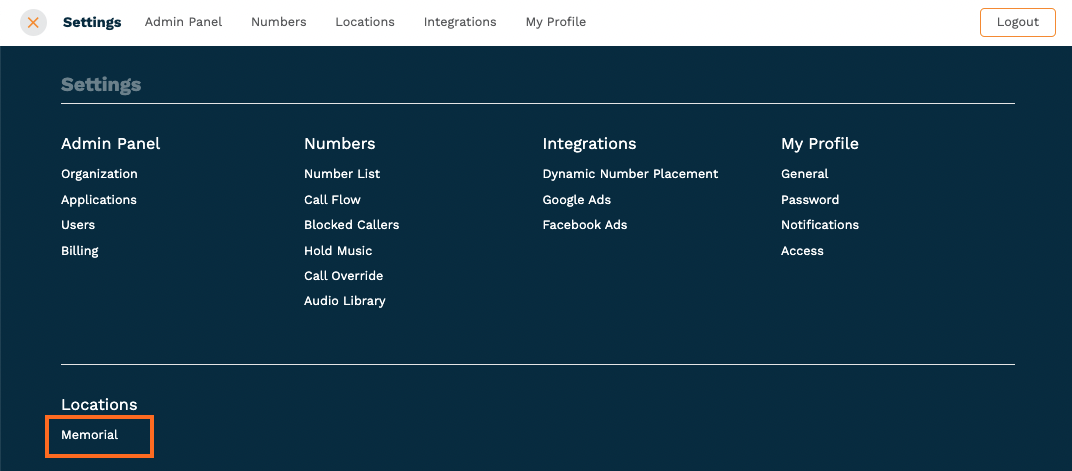
Navigate to the Settings page
Under location, click on the name of your Location
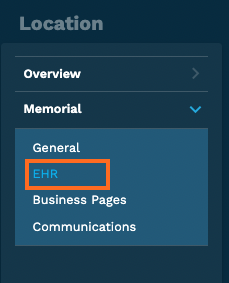
On the left side menu, click on EHR
Scroll to the bottom of the page and you will see the option to enable the logs.
Click the toggle switch to turn the logs on or off.
If the switch is gray with the button to the left, it is off.
If the switch is orange with the button to the right, it is on.
After toggling the switch On, you will see this pop up. Click on Next
Select where you would like the payments to post and then click on Confirm
Communication Logs - this will post payment activity in the communication logs
Patient Ledger - this will post payment activity in the patient ledger
After this is set, you can still update your preferences at any time by clicking on the Edit Settings link.



Notes:
The transactions that are logged in the ledger are:
Payments
Refunds
Discounts.
All payments posted in the ledger are associated with a custom payment type.
Payments are “Adit Pay” and are categorized as a payment.
Refunds are “Adit Pay Refunds” and are categorized as an adjustment.
Discounts are “Adit Pay Discounts” and are categorized as an adjustment.
How Each Payment Looks Posted in the Ledger
- Open Dental Ledger:
- Eaglesoft Ledger:
- Dentrix Ledger:
- Dentrix Ascend Ledger:
- Tracker Ledger:
- Cleardent Ledger:
- Easy Dental Ledger:
- Practiceweb Ledger:
- Abeldent Ledger:
- Curve Ledger:
- Officemate Ledger:
- Crystal Ledger:
- ChiroTouch Ledger:
- Dolphin Ledger: